> ## Documentation Index
> Fetch the complete documentation index at: https://docs.sondos-ai.com/llms.txt
> Use this file to discover all available pages before exploring further.
# Cal.com Appointment Scheduling
> Learn how to enable your AI assistant to schedule appointments using Cal.com integration
Enable your AI assistant to seamlessly schedule meetings and appointments using Cal.com integration. This powerful feature allows your AI to check availability and book meetings directly during calls.
Do not make any new fields required in your Cal.com event settings. The
integration only supports default fields and the optional phone field. Adding
required custom fields will cause the integration to fail.
## Prerequisites
Before setting up Cal.com integration, you'll need:
* A Cal.com account (either hosted or self-hosted)
* An event type configured in Cal.com
* An API key from Cal.com
## Setup Process
### 1. Cal.com Configuration
1. Sign up or log in to your [Cal.com](https://cal.com/) account
2. Create a new event type specifically for AI assistant bookings
* Give it a clear name like "Meeting with AI Assistant"
* Configure duration, availability, and other settings
3. Once created, note down the event ID from the URL
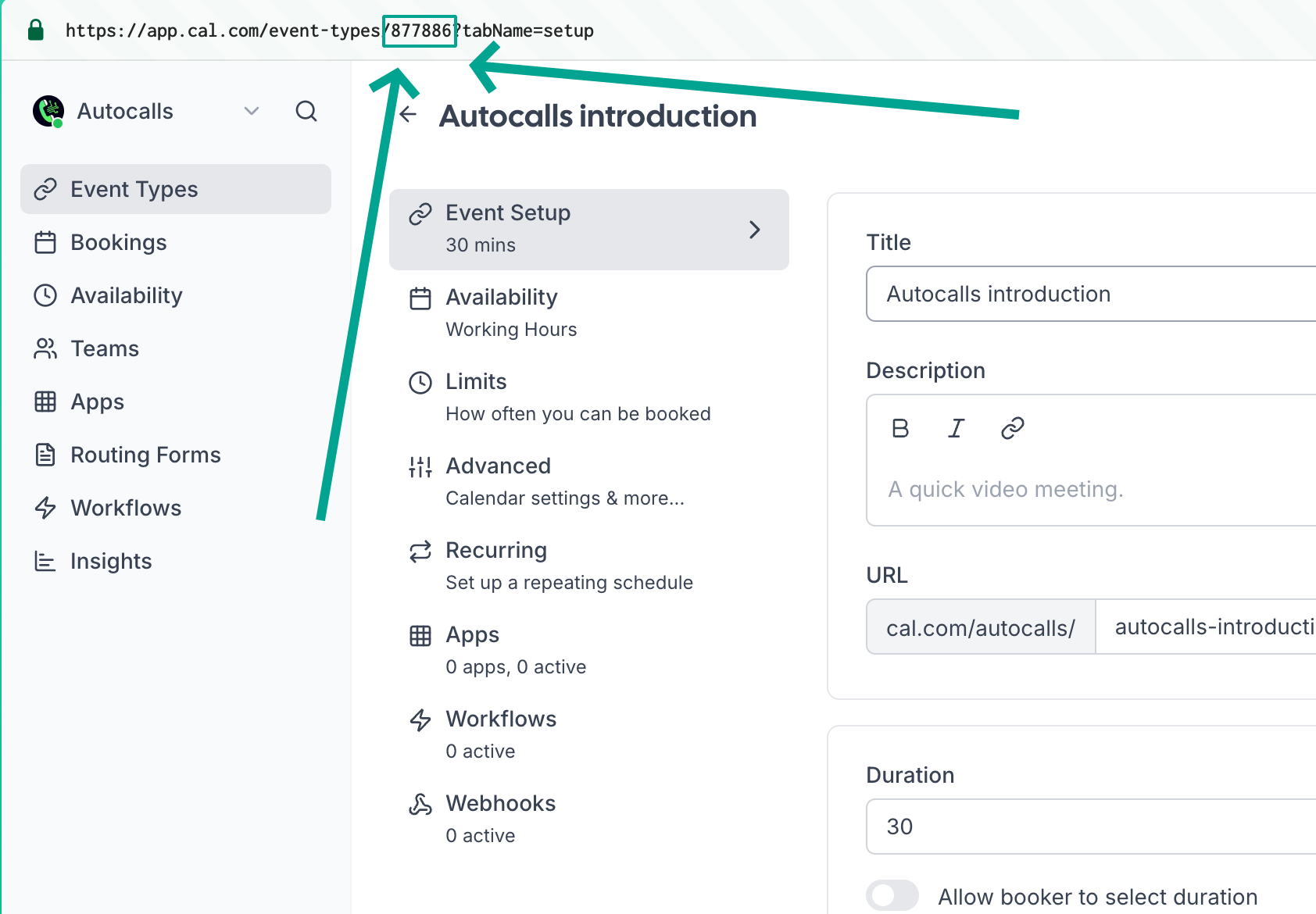 4. Generate an API key:
* Go to Cal.com settings
* Navigate to Developer Settings
* Create a new API key
* Copy and securely store the API key
### 2. Customer Contact Information
#### Email Configuration
To send calendar invites to customers:
1. Define `email` in your assistant's input variables
2. Pass the customer's email as the `email` variable when creating the lead
3. The system will automatically use this email for calendar invitations
#### Phone Number in Calendar Events
To include the caller's phone number in calendar events:
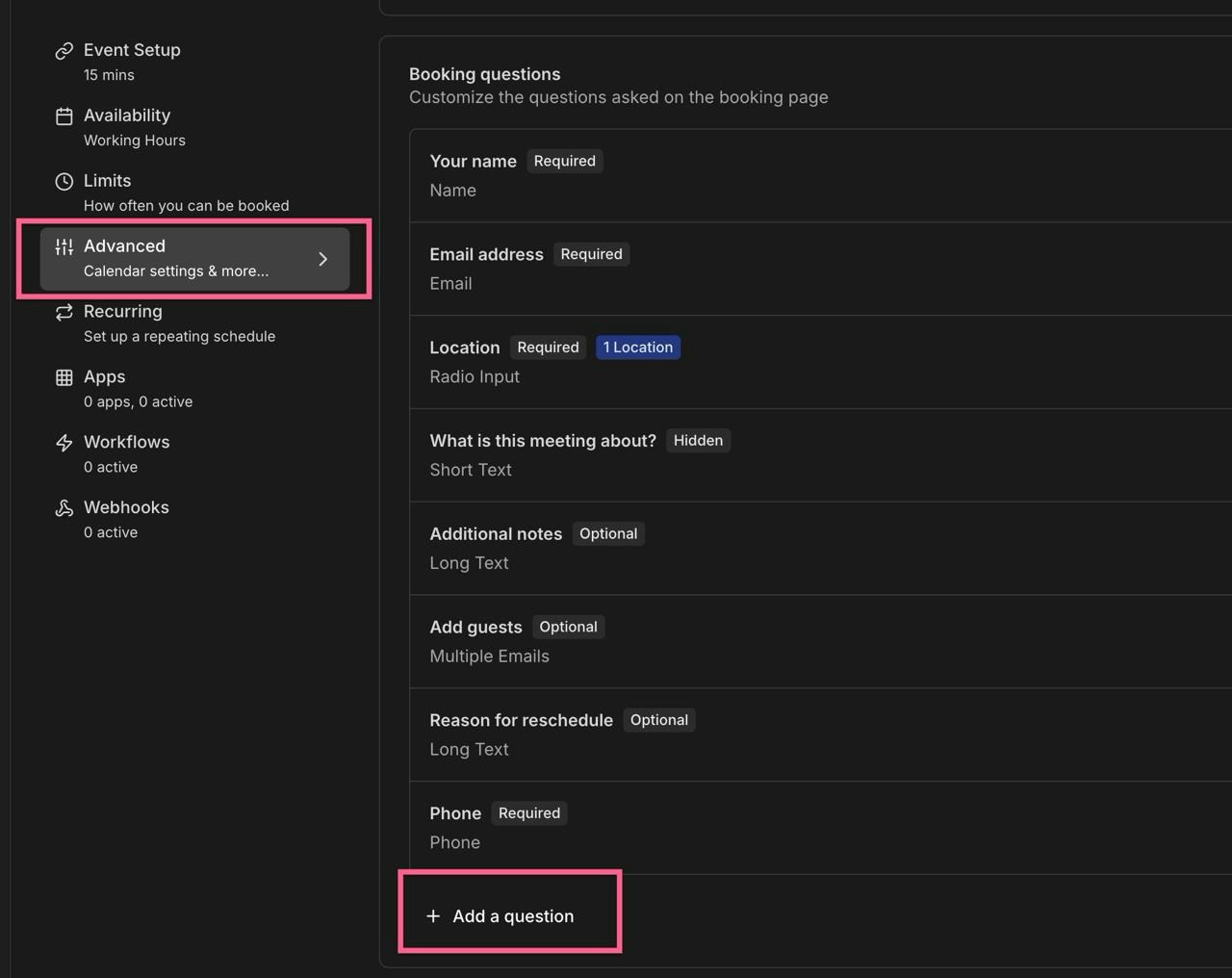
1. Go to your event settings in Cal.com
2. Click on "Add a question"
4. Generate an API key:
* Go to Cal.com settings
* Navigate to Developer Settings
* Create a new API key
* Copy and securely store the API key
### 2. Customer Contact Information
#### Email Configuration
To send calendar invites to customers:
1. Define `email` in your assistant's input variables
2. Pass the customer's email as the `email` variable when creating the lead
3. The system will automatically use this email for calendar invitations
#### Phone Number in Calendar Events
To include the caller's phone number in calendar events:
1. Go to your event settings in Cal.com
2. Click on "Add a question"
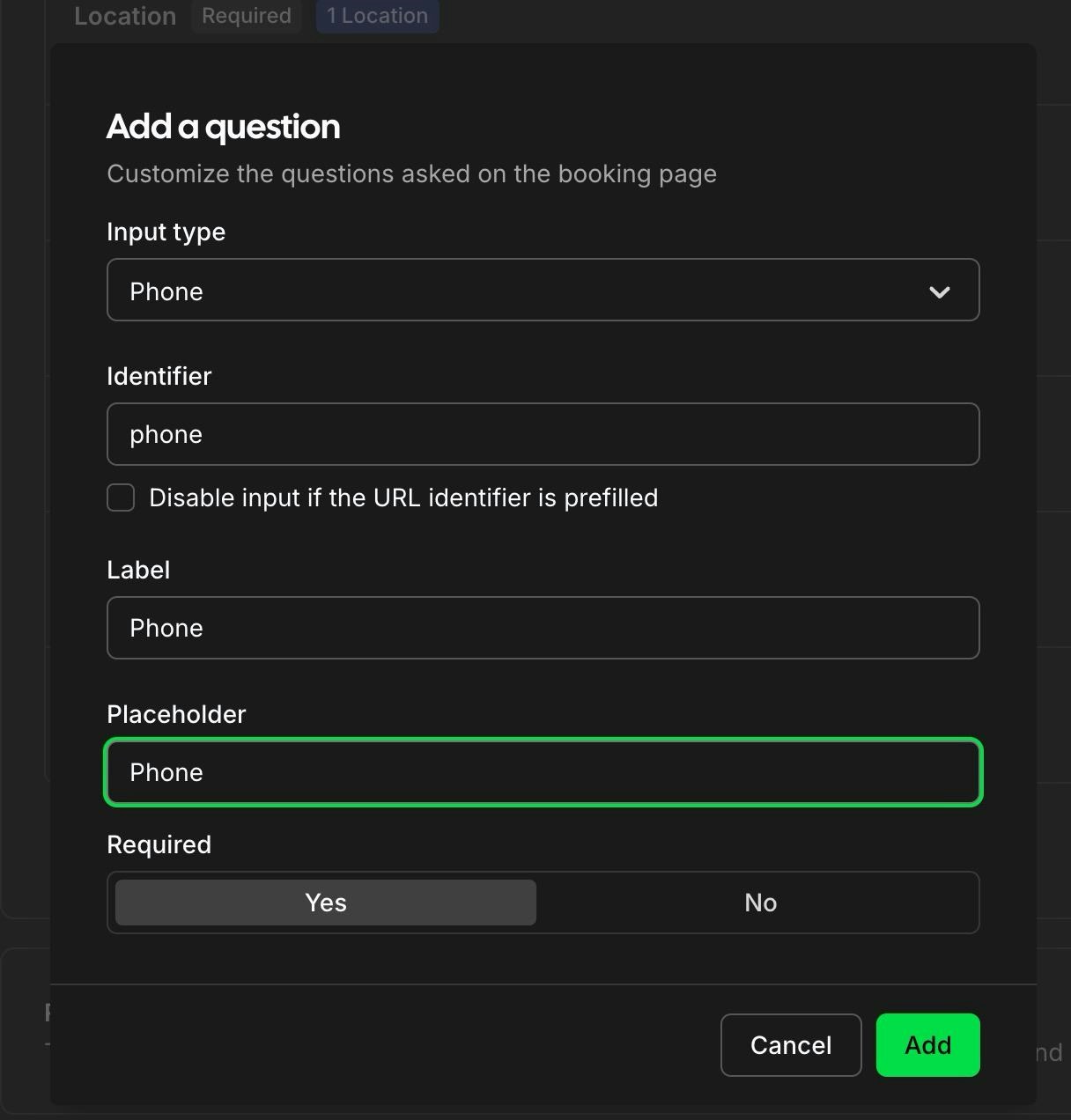
 3. Configure the field with these exact values:
* Identifier: `phone` (this must be exact)
3. Configure the field with these exact values:
* Identifier: `phone` (this must be exact)
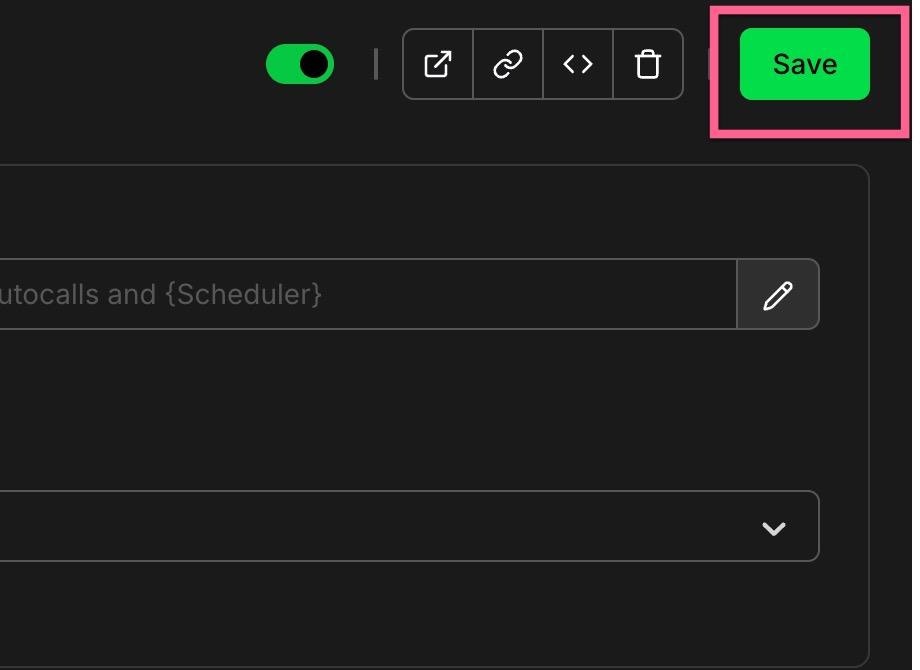
 4. Save your changes
 ### 3. Adding Cal.com to Your Assistant
1. In your [AI assistant settings](/ai-assistants/settings/prompt-and-tools#default-tools), locate the Tools section
2. Add the Cal.com integration
3. Configure the tool with:
* Your Cal.com API key
* The event type ID
### 3. Adding Cal.com to Your Assistant
1. In your [AI assistant settings](/ai-assistants/settings/prompt-and-tools#default-tools), locate the Tools section
2. Add the Cal.com integration
3. Configure the tool with:
* Your Cal.com API key
* The event type ID
 ## Best Practices
* Create dedicated event types for AI bookings to track their usage
* Set clear buffer times between meetings
* Configure appropriate meeting durations
* Use descriptive event names that make sense to your customers
* Keep only default fields and the phone field optional
* Always include customer email in lead creation for calendar invites
## Testing
After setup, we recommend:
1. Making a test call to your AI assistant
2. Requesting to schedule a meeting
3. Verifying the booking appears in your Cal.com dashboard
4. Checking that the phone number appears in the calendar event
5. Verifying the customer receives the calendar invitation email
6. Checking the confirmation emails are received
## Troubleshooting
### Quick Fixes:
**Missing API Key Error:**
* **Solution:** Enter correct API key and event ID in assistant settings
* **Steps:** Go to [assistant settings](/ai-assistants/settings/prompt-and-tools#default-tools) → Appointment Scheduling → Enter API key and event ID → Save
**Booking Failures:**
* **Email Required:** Ensure assistant has email defined in [assistant settings](/ai-assistants/settings/prompt-and-tools#call-variables)
* **Phone field setup:** Add phone field in Cal.com event settings with identifier "phone". See [Phone Number in Calendar Events](#phone-number-in-calendar-events) for detailed setup.
* **Test with real phone calls:** Use phone call (not web call) for testing
* **No custom fields:** Don't add required custom fields in Cal.com event settings
**Connection Issues:**
* **Verify API key** is active in Cal.com developer settings
* **Check event ID** from your Cal.com event URL
* **Confirm phone field** identifier is exactly "phone"
For comprehensive Cal.com troubleshooting, including detailed solutions and additional issues, see [Cal.com Issues](/troubleshooting/cal-com).
## Best Practices
* Create dedicated event types for AI bookings to track their usage
* Set clear buffer times between meetings
* Configure appropriate meeting durations
* Use descriptive event names that make sense to your customers
* Keep only default fields and the phone field optional
* Always include customer email in lead creation for calendar invites
## Testing
After setup, we recommend:
1. Making a test call to your AI assistant
2. Requesting to schedule a meeting
3. Verifying the booking appears in your Cal.com dashboard
4. Checking that the phone number appears in the calendar event
5. Verifying the customer receives the calendar invitation email
6. Checking the confirmation emails are received
## Troubleshooting
### Quick Fixes:
**Missing API Key Error:**
* **Solution:** Enter correct API key and event ID in assistant settings
* **Steps:** Go to [assistant settings](/ai-assistants/settings/prompt-and-tools#default-tools) → Appointment Scheduling → Enter API key and event ID → Save
**Booking Failures:**
* **Email Required:** Ensure assistant has email defined in [assistant settings](/ai-assistants/settings/prompt-and-tools#call-variables)
* **Phone field setup:** Add phone field in Cal.com event settings with identifier "phone". See [Phone Number in Calendar Events](#phone-number-in-calendar-events) for detailed setup.
* **Test with real phone calls:** Use phone call (not web call) for testing
* **No custom fields:** Don't add required custom fields in Cal.com event settings
**Connection Issues:**
* **Verify API key** is active in Cal.com developer settings
* **Check event ID** from your Cal.com event URL
* **Confirm phone field** identifier is exactly "phone"
For comprehensive Cal.com troubleshooting, including detailed solutions and additional issues, see [Cal.com Issues](/troubleshooting/cal-com).