> ## Documentation Index
> Fetch the complete documentation index at: https://docs.sondos-ai.com/llms.txt
> Use this file to discover all available pages before exploring further.
# Sync Qualified Leads to Google Sheets
> Learn how to automatically add qualified leads to Google Sheets after successful AI phone calls
This tutorial shows how to set up an automation that automatically adds qualified leads to a Google Sheet after successful AI phone calls, creating a powerful lead tracking and CRM system.
## What You'll Learn
* Setting up post-call automation with conditional logic
* Creating Google Sheets integration for lead tracking
* Configuring data mapping from calls to spreadsheet
* Building a qualified leads database automatically
* Monitoring and optimizing your lead collection process
## Prerequisites
* Configured AI assistant with post-call variables
* Google account with Google Sheets access
* Understanding of post-call webhook automation
* Access to call testing functionality
## Step 1: Set Up Post-Call Automation Trigger
We'll start by creating an automation that triggers when a phone call ends.
1. **Navigate to Automation Platform**
2. **Create a new flow** from scratch
3. **Search for your calling platform** in the trigger section
4. **Select "Phone Call Ended"** trigger
* This trigger activates when any call to your selected assistant completes
## Step 2: Configure Assistant and Webhook
1. **Select the assistant** you want to automate
* Each assistant can only have one "phone call ended" automation
* All calls to this assistant will go through this automation
2. **Click "Test Trigger"** to generate the webhook
* This creates a webhook URL in the background
* The webhook is automatically saved to your assistant settings
## Step 3: Verify Webhook Configuration
1. **Open a new tab** and navigate to your assistant
2. **Go to the third tab** "Post-call Actions"
3. **Verify the webhook URL** was automatically added
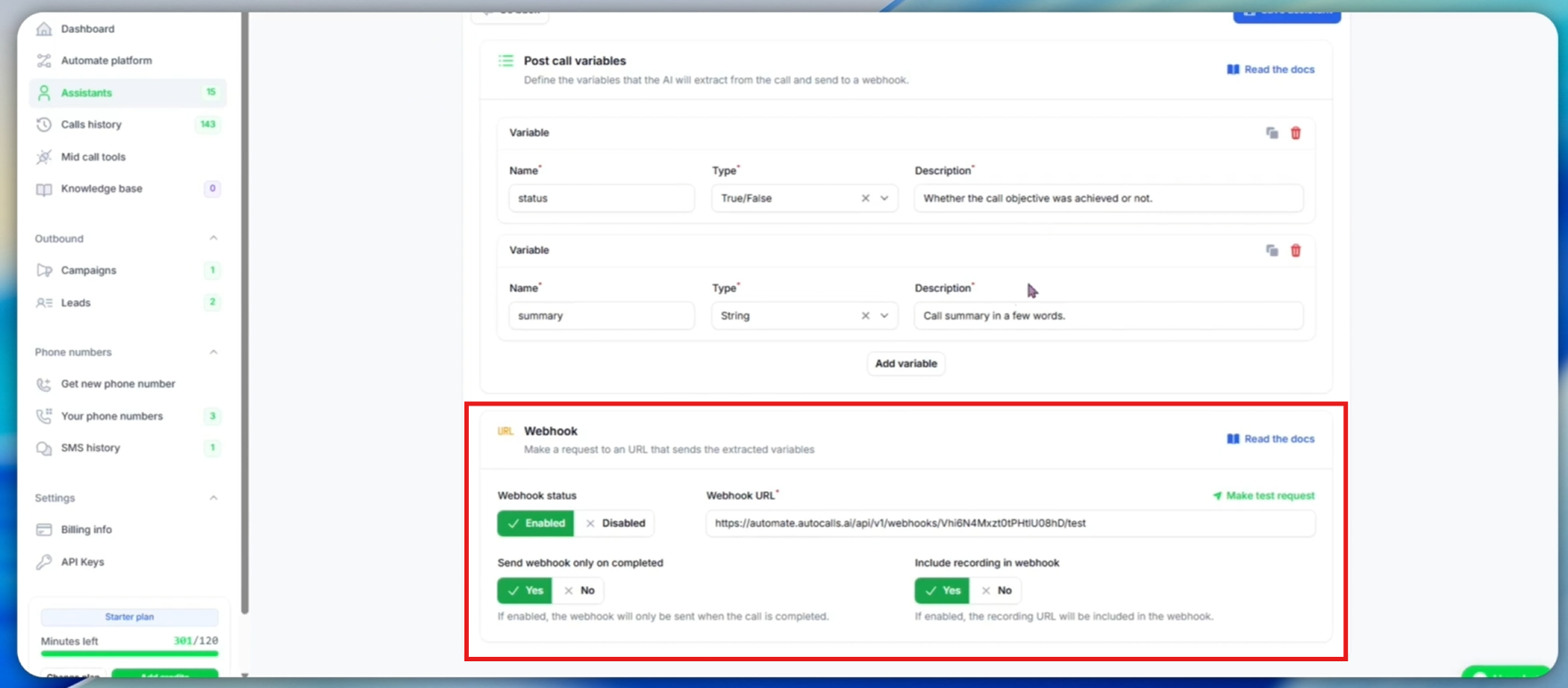
4. **Review webhook settings:**
* **Enabled**: Webhook will trigger after calls
* **Completed calls only**: Only successful calls trigger automation
* **All calls**: Change to "No" if you want all calls (including failed) to trigger
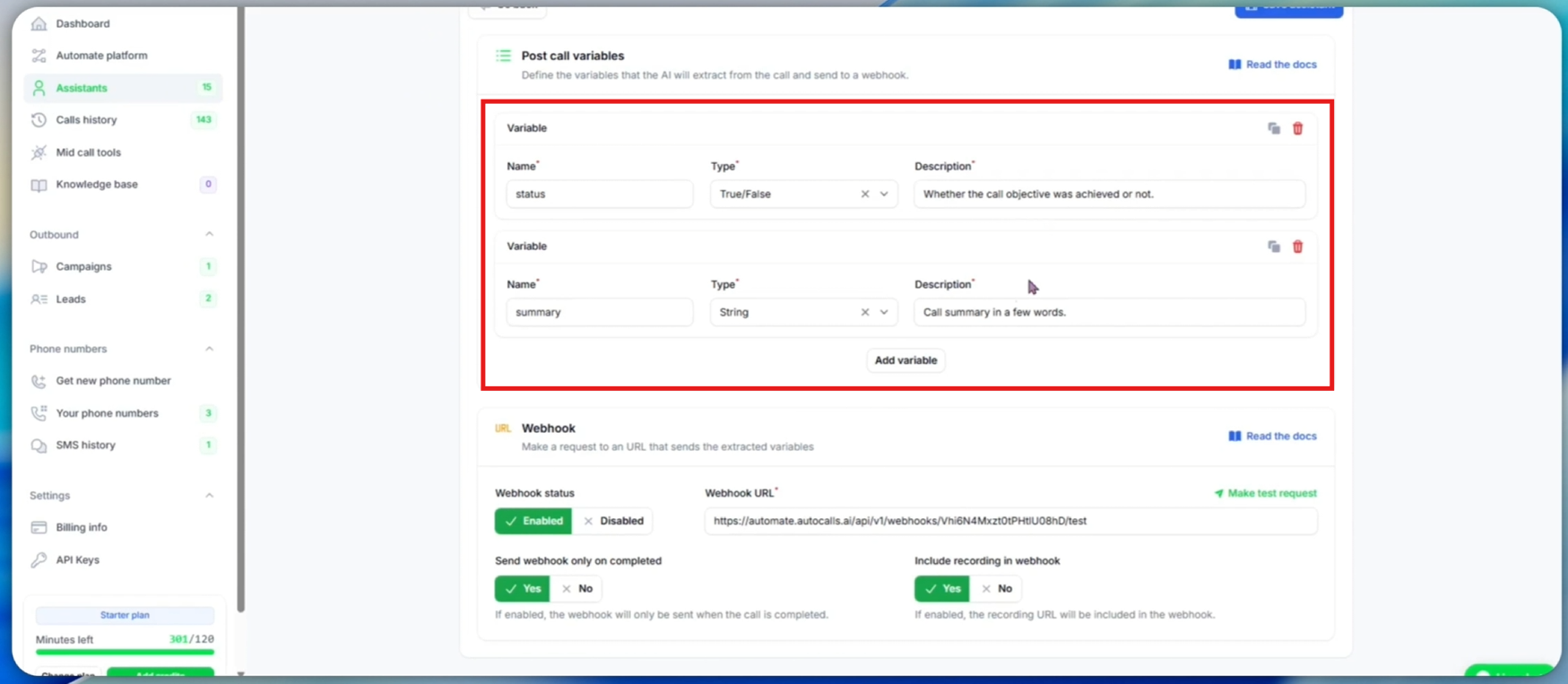
5. **Review post-call variables:**
* **status**: Boolean (true/false) indicating if call objective was achieved
* **summary**: Text summary of the call conversation
* These variables are extracted by AI after each call
## Step 4: Generate Test Call Data
To configure our automation properly, we need actual call data to work with. We'll make a test call to generate the post-call variables.
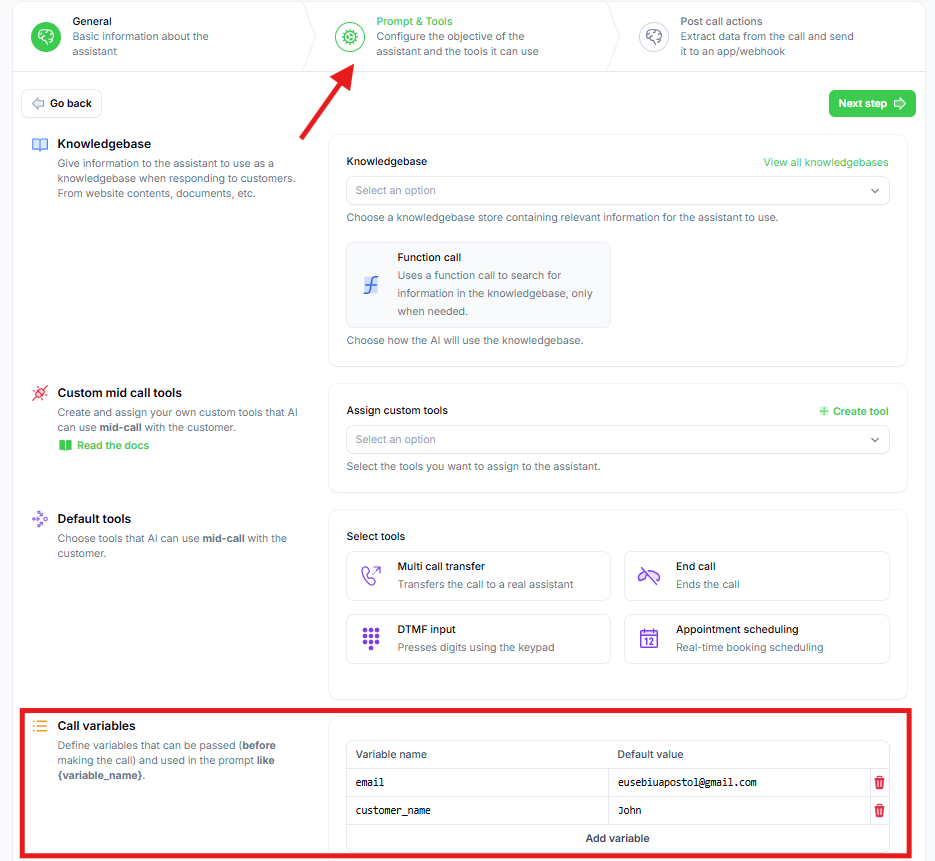
1. **Set real values** in your assistant's call variables:
* **Set your name and email** for realistic test data
* These will be the default values when testing from the assistant
2. **Make a test call to generate webhook data:**
* Click **"Speak to Assistant"** → **"Phone Call"**
* **Answer when your assistant calls you**
* **Respond positively** to ensure the `status` variable becomes `true`
* **Complete the call objective** during the conversation
* **End the call naturally**
In a real situation, the assistant will take data assigned to the lead. For testing, it uses the default values you just set.
3. **Verify call results and variable extraction:**
* **Navigate to your calls list** and find the recent call
* **Click on the call** to view details
* **Confirm the `status` variable is `true`** (call objective achieved)
* **Review the extracted `summary`** - this contains AI-generated call summary
* These variables are extracted after each call based on:
* Call transcript
* Variable descriptions
* Variable types (Boolean for status)
* System prompt context
The variables after a call are being extracted. You can refresh the page after about a minute and then you will see the extracted variables.
## Step 5: Configure Automation with Call Data
1. **Return to your automation tab**
2. **Verify you received call data** from the test trigger
* You should see the webhook data because you clicked "Test Trigger" and then made a call
* The automation received the request after the call ended and variables were extracted
3. **Alternative method - resend webhook data from existing calls:**
* If you need to test with different call data, you can reuse any existing call
* **Click "Test Trigger"** again in your automation
* **Go to any completed call** in your platform
* **Click "Resend Webhook"** to push that call's data to your automation
* **Return to automation tab** to see the updated data
### Adding New Post-Call Variables
If you need to add a new post-call variable after creating the automation, follow this process to update your automation with the new variable data.
1. **Define the new variable in your assistant:**
* Go to assistant settings → "Post-call Actions" tab
* Add your new post-call variable (name, type, description)
* **Save the assistant**
2. **Update automation with new variable data:**
* **Return to your automation**
* **Click "Test Trigger"** to prepare for new webhook data
3. **Re-evaluate an existing call:**
* **Go to any completed call** for this assistant
* **Click "Re-evaluate"** to extract the new variable from that call
* **Wait for processing** to complete
4. **Send updated data to automation:**
* **Click "Resend Webhook"** on the same call
* **Return to automation tab**
* **Verify the new variable** is now available in your automation data
This resend feature is useful for testing different scenarios without making new calls every time.
## Step 6: Add Conditional Logic for Qualified Leads
We only want to add leads to Google Sheets when the call objective was achieved.
1. **Click the "+" sign** to add a step
2. **Search for "Branch"** in control flow
3. **Select Branch** to create conditional logic
4. **Configure the branch condition:**
* **Select `status` variable** from call data
* **Choose "Boolean is true"**
* This creates two paths: True (qualified) and False (not qualified)
## Step 7: Create Google Sheets Integration
Now we'll set up the Google Sheets action for qualified leads (True branch).
1. **On the True branch**, click the "+" sign
2. **Search for "Google Sheets"**
3. **Select "Insert Row"** action
4. **Create a new Google Sheets connection:**
* Authorize with your Google account
* Save the connection for future use
## Step 8: Set Up Your Qualified Leads Spreadsheet
1. **Create a new Google Sheet** named "successful calls" for example
2. **Set up column headers:**
* **Column A**: `phone_number`
* **Column B**: `summary`
* Add more columns for additional data as needed
## Step 9: Configure Spreadsheet Selection
1. **Return to your automation**
2. **Select your "successful calls" spreadsheet**
3. **Select the correct sheet** (usually "Sheet1")
4. **Enable "First row contains headers"**:
* This tells the automation about your column structure
* Headers should automatically load and display
## Step 10: Map Call Data to Spreadsheet Columns
1. **Map the phone number:**
* Click on the `phone_number` field
* **Select "Phone Call Ended"** data source
* **Find and select the phone number** from call data
* Click "Insert"
2. **Map the call summary:**
* Click on the `summary` field
* **Navigate to "Post Call Variables"**
* **Select the `summary` variable**
* Click "Insert"
3. **Map any additional fields:**
* Email from call variables
* Call date/time from call metadata
* Any custom variables you've defined
## Step 11: Test and Verify
1. **Click "Test Step"** to verify the integration
2. **Check for successful execution**
3. **Go to your Google Sheet** to confirm:
* New row was added with correct data
* All mapped fields populated properly
* Data formatting looks correct
## Step 12: Publish and Monitor
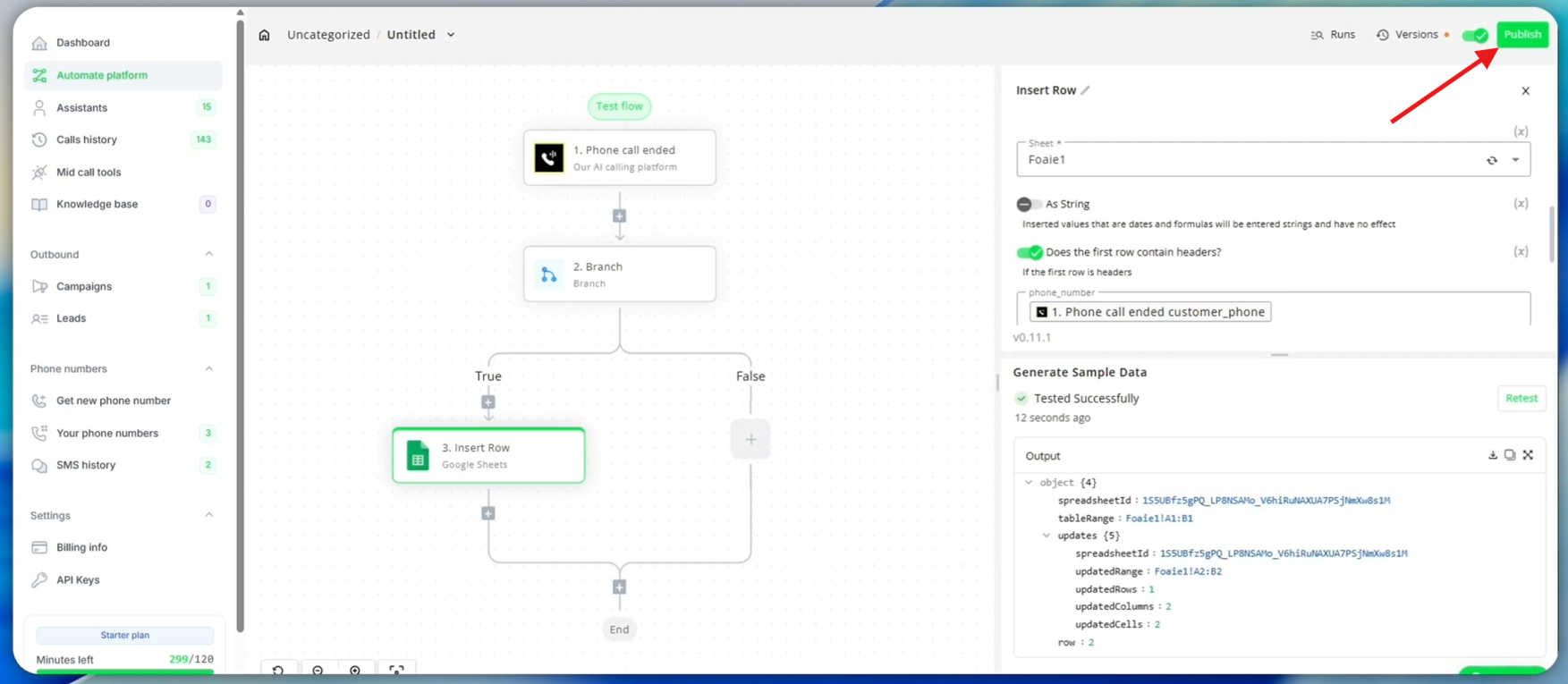
1. **Click "Publish"** to activate your automation
2. **Your qualified leads tracking is now live**
3. **Monitor automation performance:**
* Check automation "Runs" for execution history
* Verify qualified leads are being added to your sheet
* Monitor for any failed executions
## Troubleshooting
### Common Issues
**Leads not appearing in spreadsheet:**
* Verify Google Sheets connection is authorized
* Check that automation is published and active
* Confirm calls are triggering `status` = `true`
* Verify branch condition is configured correctly
**Incomplete data in spreadsheet:**
* Check all field mappings in the automation
* Verify post-call variables are being extracted
* Confirm spreadsheet headers match automation fields
* Test with various call scenarios
## Next Steps
Once your qualified leads automation is working:
* **Add lead scoring** based on call quality
* **Create follow-up automations** for hot leads
* **Integrate with email marketing** platforms
* **Set up analytics dashboards** for conversion tracking
* **Expand to multiple campaigns** and lead sources
Your qualified leads will now be automatically captured and organized in Google Sheets, creating a powerful foundation for your sales and follow-up processes!
 4. **Review webhook settings:**
* **Enabled**: Webhook will trigger after calls
* **Completed calls only**: Only successful calls trigger automation
* **All calls**: Change to "No" if you want all calls (including failed) to trigger
4. **Review webhook settings:**
* **Enabled**: Webhook will trigger after calls
* **Completed calls only**: Only successful calls trigger automation
* **All calls**: Change to "No" if you want all calls (including failed) to trigger
 5. **Review post-call variables:**
* **status**: Boolean (true/false) indicating if call objective was achieved
* **summary**: Text summary of the call conversation
* These variables are extracted by AI after each call
## Step 4: Generate Test Call Data
To configure our automation properly, we need actual call data to work with. We'll make a test call to generate the post-call variables.
5. **Review post-call variables:**
* **status**: Boolean (true/false) indicating if call objective was achieved
* **summary**: Text summary of the call conversation
* These variables are extracted by AI after each call
## Step 4: Generate Test Call Data
To configure our automation properly, we need actual call data to work with. We'll make a test call to generate the post-call variables.
 1. **Set real values** in your assistant's call variables:
* **Set your name and email** for realistic test data
* These will be the default values when testing from the assistant
2. **Make a test call to generate webhook data:**
* Click **"Speak to Assistant"** → **"Phone Call"**
* **Answer when your assistant calls you**
* **Respond positively** to ensure the `status` variable becomes `true`
* **Complete the call objective** during the conversation
* **End the call naturally**
1. **Set real values** in your assistant's call variables:
* **Set your name and email** for realistic test data
* These will be the default values when testing from the assistant
2. **Make a test call to generate webhook data:**
* Click **"Speak to Assistant"** → **"Phone Call"**
* **Answer when your assistant calls you**
* **Respond positively** to ensure the `status` variable becomes `true`
* **Complete the call objective** during the conversation
* **End the call naturally**
 1. **Click "Publish"** to activate your automation
2. **Your qualified leads tracking is now live**
3. **Monitor automation performance:**
* Check automation "Runs" for execution history
* Verify qualified leads are being added to your sheet
* Monitor for any failed executions
## Troubleshooting
### Common Issues
**Leads not appearing in spreadsheet:**
* Verify Google Sheets connection is authorized
* Check that automation is published and active
* Confirm calls are triggering `status` = `true`
* Verify branch condition is configured correctly
**Incomplete data in spreadsheet:**
* Check all field mappings in the automation
* Verify post-call variables are being extracted
* Confirm spreadsheet headers match automation fields
* Test with various call scenarios
## Next Steps
Once your qualified leads automation is working:
* **Add lead scoring** based on call quality
* **Create follow-up automations** for hot leads
* **Integrate with email marketing** platforms
* **Set up analytics dashboards** for conversion tracking
* **Expand to multiple campaigns** and lead sources
Your qualified leads will now be automatically captured and organized in Google Sheets, creating a powerful foundation for your sales and follow-up processes!
1. **Click "Publish"** to activate your automation
2. **Your qualified leads tracking is now live**
3. **Monitor automation performance:**
* Check automation "Runs" for execution history
* Verify qualified leads are being added to your sheet
* Monitor for any failed executions
## Troubleshooting
### Common Issues
**Leads not appearing in spreadsheet:**
* Verify Google Sheets connection is authorized
* Check that automation is published and active
* Confirm calls are triggering `status` = `true`
* Verify branch condition is configured correctly
**Incomplete data in spreadsheet:**
* Check all field mappings in the automation
* Verify post-call variables are being extracted
* Confirm spreadsheet headers match automation fields
* Test with various call scenarios
## Next Steps
Once your qualified leads automation is working:
* **Add lead scoring** based on call quality
* **Create follow-up automations** for hot leads
* **Integrate with email marketing** platforms
* **Set up analytics dashboards** for conversion tracking
* **Expand to multiple campaigns** and lead sources
Your qualified leads will now be automatically captured and organized in Google Sheets, creating a powerful foundation for your sales and follow-up processes!