> ## Documentation Index
> Fetch the complete documentation index at: https://docs.sondos-ai.com/llms.txt
> Use this file to discover all available pages before exploring further.
# Zadarma Integration
> A step by step guide to connect to your Zadarma account via SIP trunking
## Step 1: Gather Your Information
* PBX Extension:
Go to My Switchboard, Extensions on the main page.
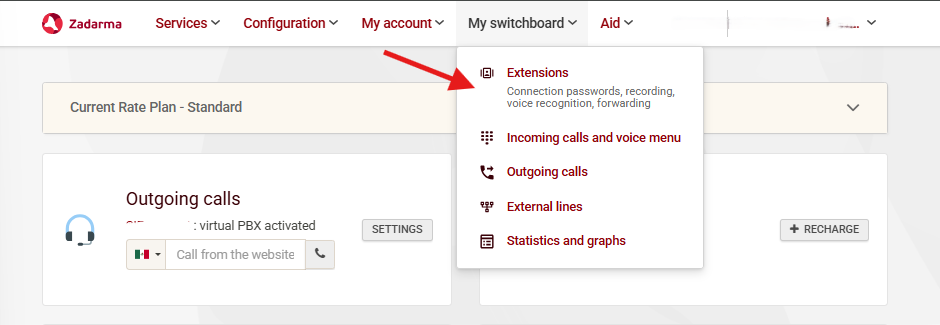 Find the following information:
```
Extension number: e.g., 1000
Server address: e.g., pbx.zadarma.com
Username: Your extension username
Password: Your extension password
```
Find the following information:
```
Extension number: e.g., 1000
Server address: e.g., pbx.zadarma.com
Username: Your extension username
Password: Your extension password
```
 * SIP Connection:
```
Phone number: e.g., +1 555 0123
SIP server: e.g., sip.zadarma.com
Username: Provided by your phone company
Password: Provided by your phone company
```
Go to Configuration, SIP Settings on the main page.
* SIP Connection:
```
Phone number: e.g., +1 555 0123
SIP server: e.g., sip.zadarma.com
Username: Provided by your phone company
Password: Provided by your phone company
```
Go to Configuration, SIP Settings on the main page.
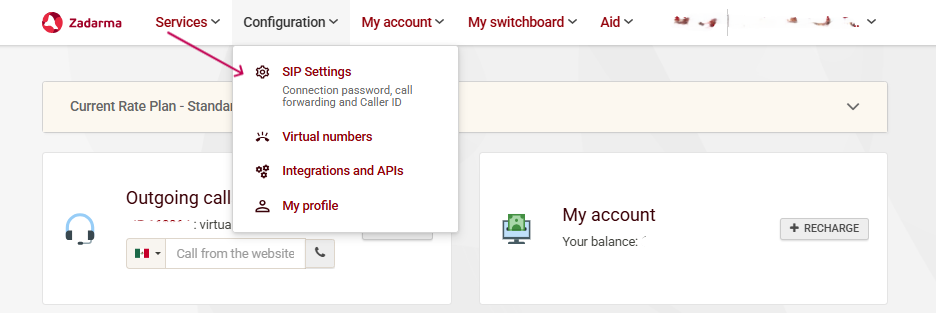 Find the following information:
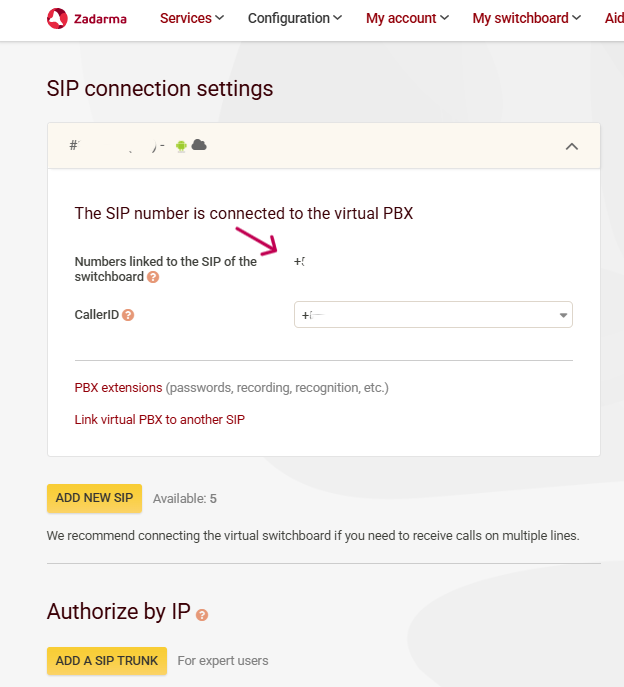 * For **IP Authorization type**:
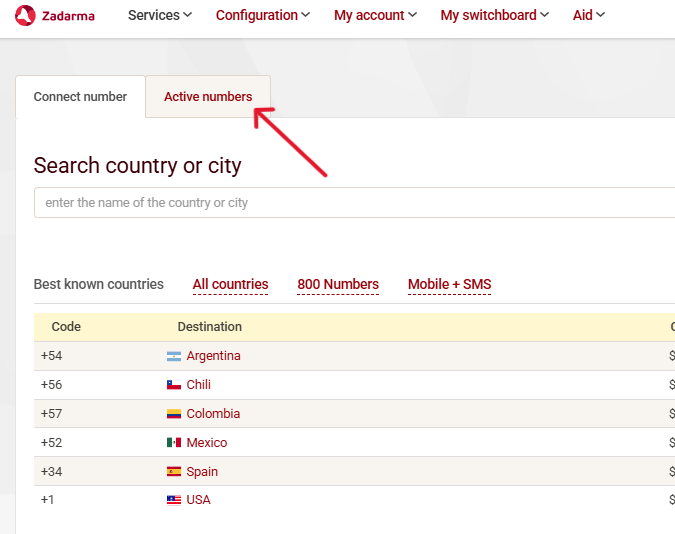
1. Go to Services, Connect number on the main page.
* For **IP Authorization type**:
1. Go to Services, Connect number on the main page.
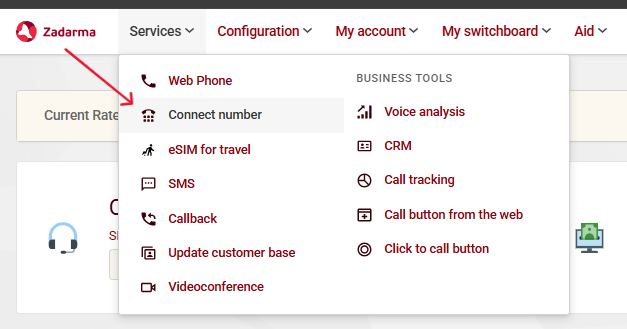 2. Go to Active numbers.
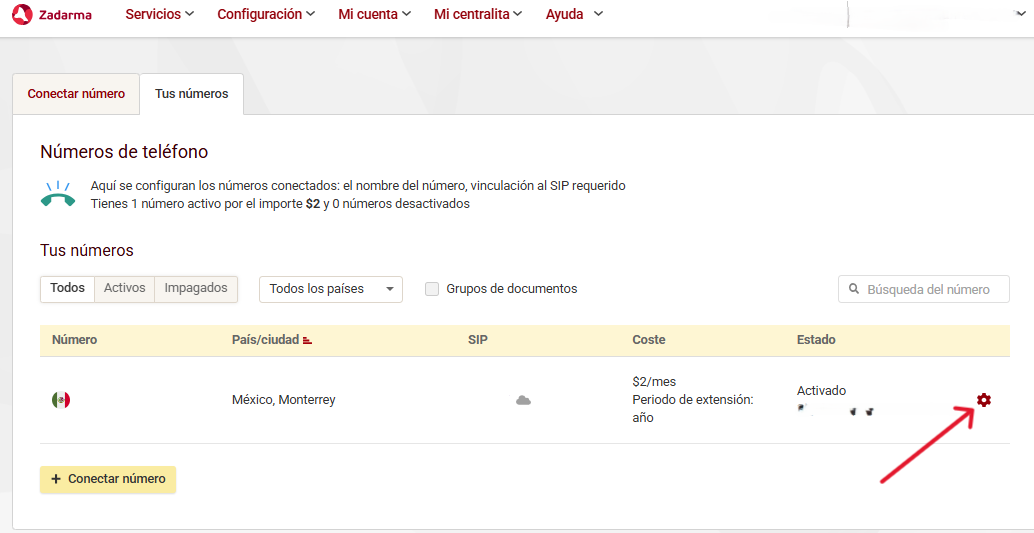
 3. Click on the number you want to connect and press settings button.
 4. Click on external services and then check the option for SIP URI.
Add `sip:extension@5wed79aeavr.sip.livekit.cloud ` (this is sondos-ai SIP server address) .
4. Click on external services and then check the option for SIP URI.
Add `sip:extension@5wed79aeavr.sip.livekit.cloud ` (this is sondos-ai SIP server address) .
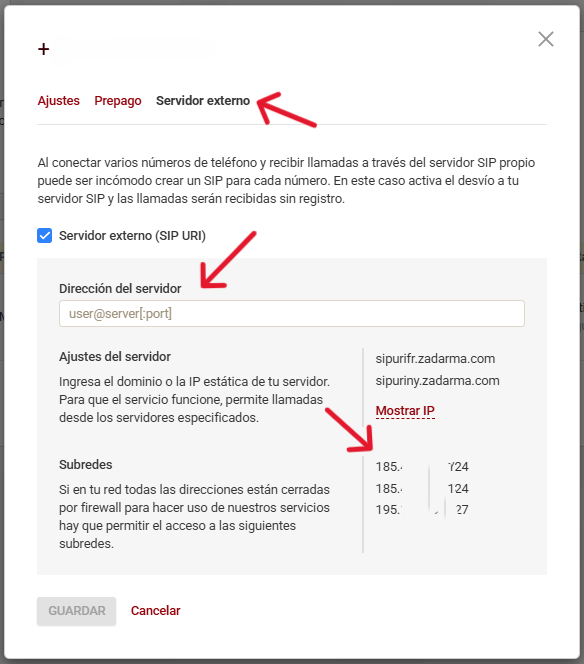 You will need these IPs which you will put in step 2 for inbound authorization type.
## Step 2: Import numbers to sondos-ai
You need to import to sondos-ai.
1. Go to your sondos-ai.com dashboard
2. Navigate to **Your Phone Numbers**
3. Click “Integrate SIP trunk”
You will need these IPs which you will put in step 2 for inbound authorization type.
## Step 2: Import numbers to sondos-ai
You need to import to sondos-ai.
1. Go to your sondos-ai.com dashboard
2. Navigate to **Your Phone Numbers**
3. Click “Integrate SIP trunk”
 4. Fill in your details based on your integration type
For PBX Extension:
4. Fill in your details based on your integration type
For PBX Extension:
 For SIP Connection:
 5. Here you will supply the termination SIP URI you set up in Step 1.
```
Server address: e.g., pbx.zadarma.com / sip.zadarma.com based on your integration type
```
5. Here you will supply the termination SIP URI you set up in Step 1.
```
Server address: e.g., pbx.zadarma.com / sip.zadarma.com based on your integration type
```
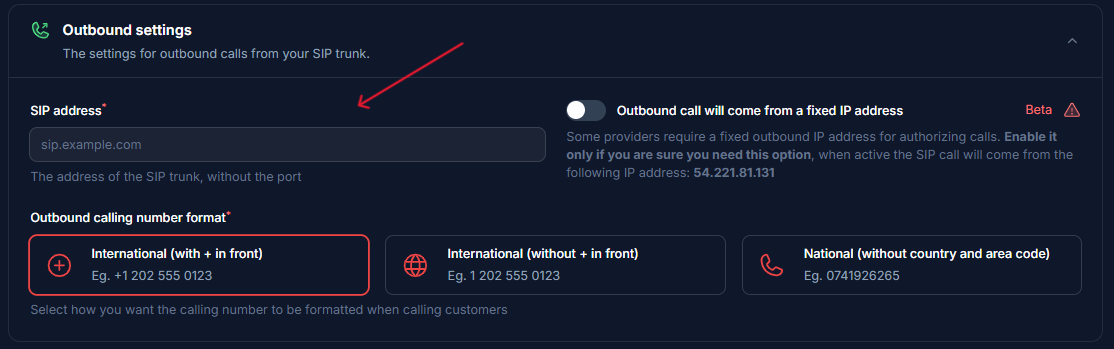 6. Here select Authorization type.
* Add the **IPs** from **Zadarma** (Step 1).
6. Here select Authorization type.
* Add the **IPs** from **Zadarma** (Step 1).
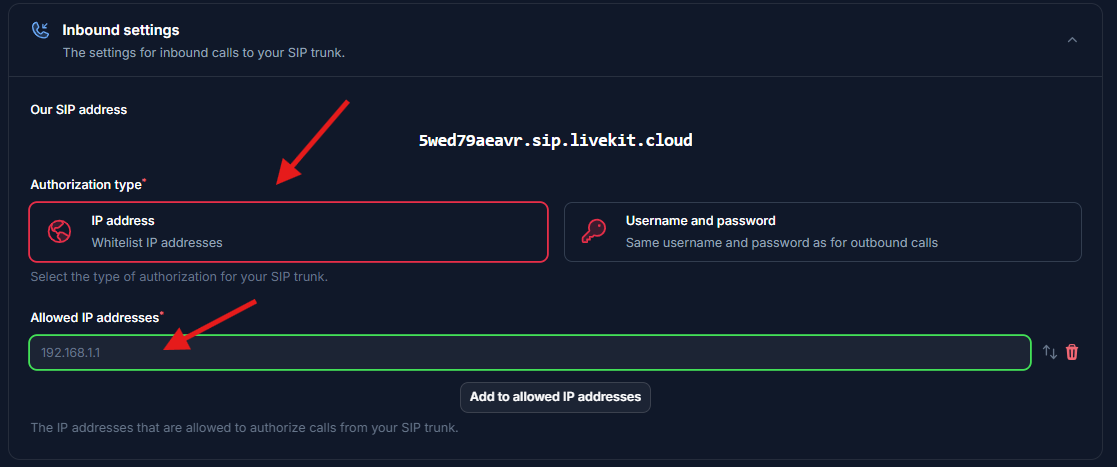 7. Select the country of where your SIP trunk is located.
 ### Step 3: Verify Setup
After configuration:
1. Make a test call to your number/extension
2. Check that the AI assistant answers
3. Use the test call feature to verify outbound calling
## Security Requirements
Your SIP credentials need to be secure:
* **Username**: Your extension number or provider-supplied username
* **Password must have**:
* 12 or more characters
* Numbers
* Upper and lowercase letters
* Special characters recommended
## Common Issues
* Check your Termination SIP URI If there’s a space in it, please remove. Also you should use a localized termination uri that’s near your region. Check out this [doc](https://www.twilio.com/docs/global-infrastructure/localized-uris/termination) to select one.
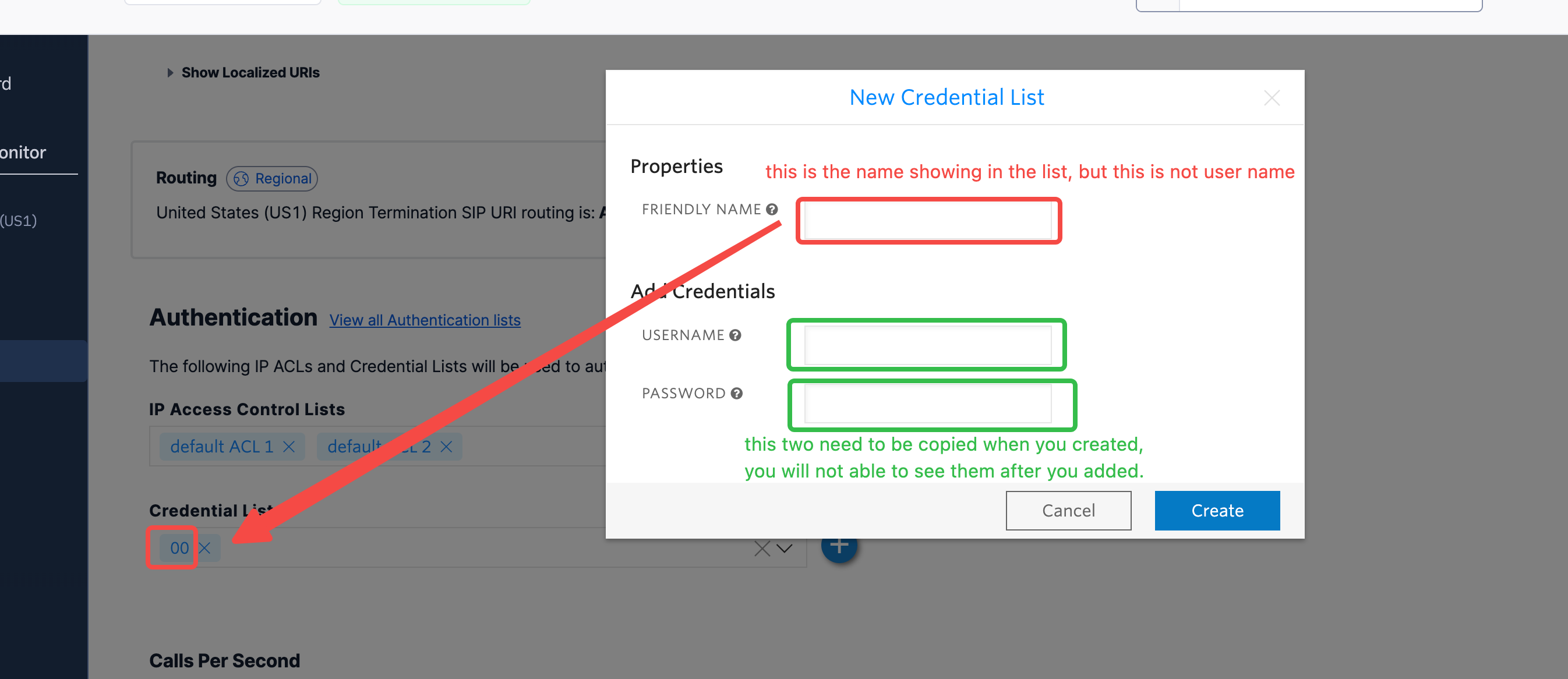
* Check your user name and credentials Please make sure you entered the right user name and credentials which shows in this dialog. Please note the user name is not the friendly name that shows in the credential list. The friendly is different to user name, you need to double check if you happen to give a different name.
### Step 3: Verify Setup
After configuration:
1. Make a test call to your number/extension
2. Check that the AI assistant answers
3. Use the test call feature to verify outbound calling
## Security Requirements
Your SIP credentials need to be secure:
* **Username**: Your extension number or provider-supplied username
* **Password must have**:
* 12 or more characters
* Numbers
* Upper and lowercase letters
* Special characters recommended
## Common Issues
* Check your Termination SIP URI If there’s a space in it, please remove. Also you should use a localized termination uri that’s near your region. Check out this [doc](https://www.twilio.com/docs/global-infrastructure/localized-uris/termination) to select one.
* Check your user name and credentials Please make sure you entered the right user name and credentials which shows in this dialog. Please note the user name is not the friendly name that shows in the credential list. The friendly is different to user name, you need to double check if you happen to give a different name.
 {" "}
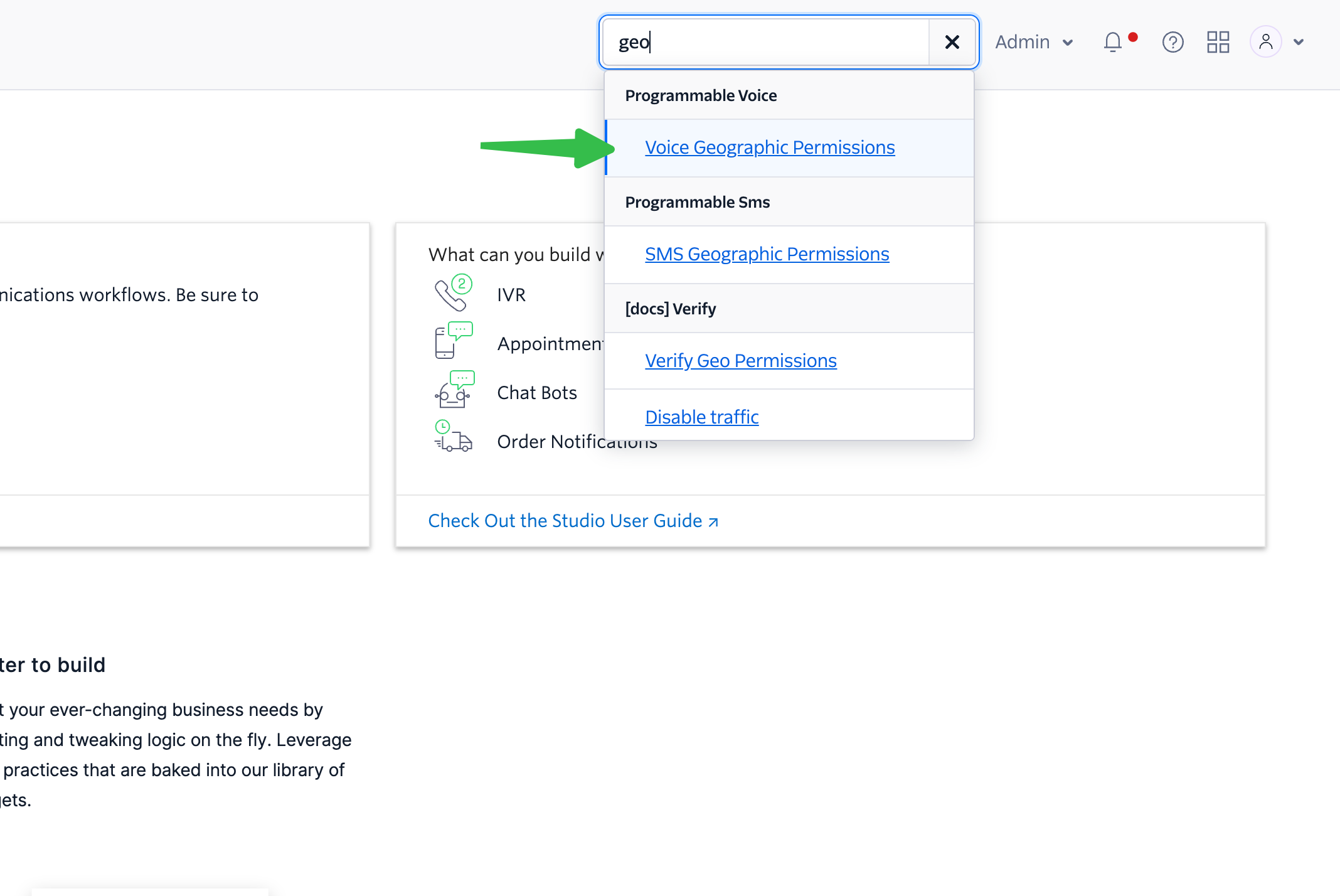
* Search “geo” to find the “Voice Geographic Permissions” setting.
{" "}
* Search “geo” to find the “Voice Geographic Permissions” setting.
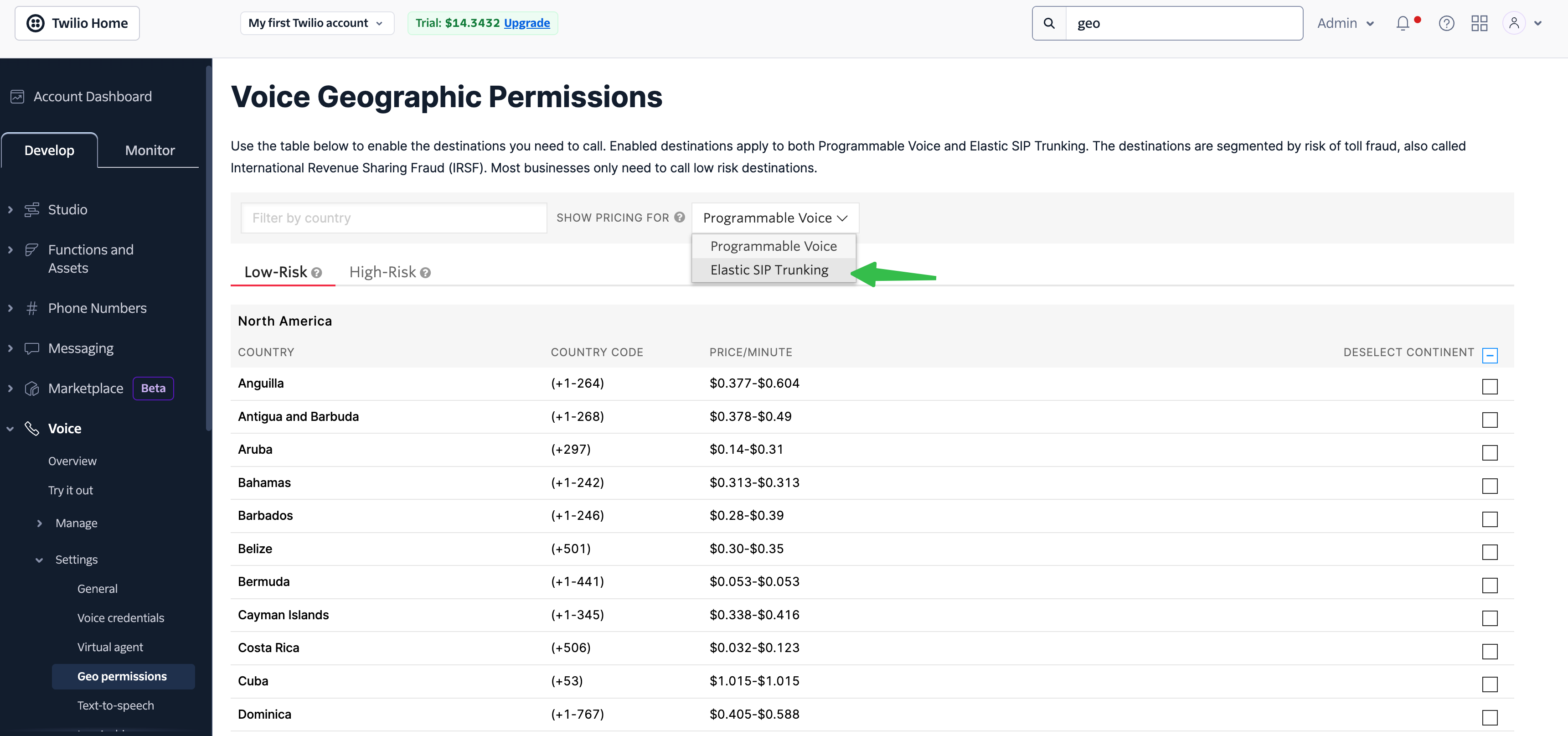
 * Choose “Elastic Sip Trunking” in selector, and select the countries you would like to dial.
 {" "}
***
Need help setting up? Our support team specializes in helping customers
integrate their phone systems. We'll guide you through the entire process,
ensuring a smooth setup with your specific phone system configuration.
{" "}
***
Need help setting up? Our support team specializes in helping customers
integrate their phone systems. We'll guide you through the entire process,
ensuring a smooth setup with your specific phone system configuration.